Feature
Invite your team, assign roles, control access.
Two roles that cover 95% of enterprise needs without the complexity.
Some platforms have five roles, eight permission levels, and a matrix nobody understands. Pinchy has two roles because two roles are enough.
Configures the platform. Creates agents, manages providers, invites users, views audit trails, sets up enterprise features.
Uses the platform. Chats with agents, manages personal context, uses personal Smithers agent.
The first user created during setup is automatically an admin. Pinchy prevents demoting the last admin to ensure there's always at least one.
No SSO configuration, no LDAP setup, no external dependencies. Inviting a team member takes 30 seconds.
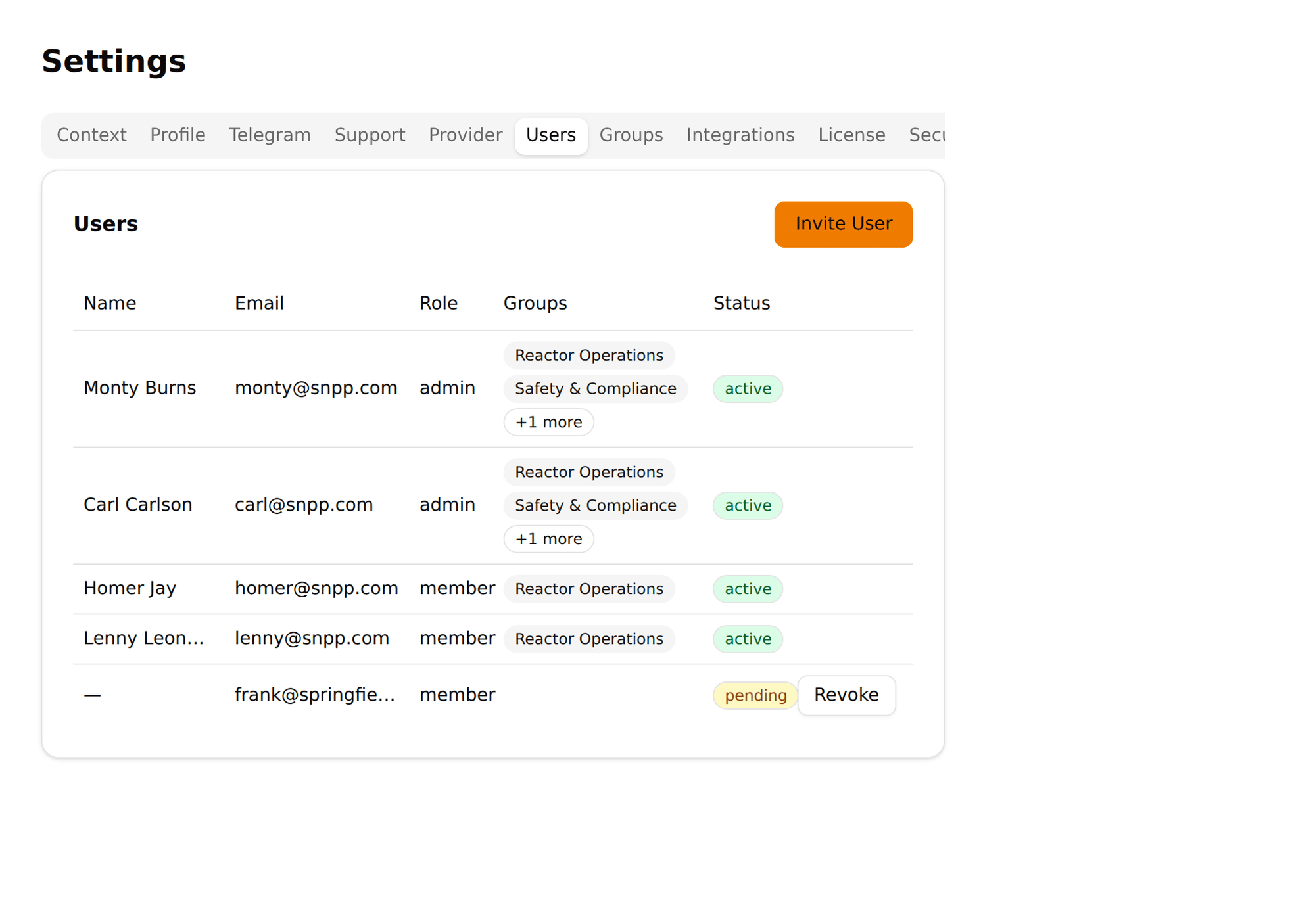
Enter the person's email and name, choose their role (Admin or Member). Pinchy generates a unique invite link.
The invited person opens the link, sets their password, and their account is created with the assigned role.
The new user can immediately log in and talk to any agent they have access to. Their personal Smithers agent is already waiting.
Promote a member to admin or demote an admin to member. Changes take effect immediately. Every role change is recorded in the audit trail.
Deactivate a user instead of deleting them. Their account is locked, they can't log in, but their audit history is preserved for compliance.
Admins can trigger a password reset for any user. The user sets a new password on their next login. No email service required.
Changed your mind? Reactivate a deactivated user. Their access is restored with the same role and permissions they had before.
Track which invites have been sent, which have been claimed, and which are still waiting. Revoke unclaimed invites if needed.
Each user can set their own context — name, role, preferences. This context is available to agents in conversations, making responses more relevant.
30-minute demo. We'll walk through the invite flow, role management, and how it connects with agent access control.
FAQ
Admins invite users by email from Settings → Users. The invited person receives a link to create their account with a name and password. No external identity provider required — Pinchy handles authentication internally with secure password hashing (scrypt).
Pinchy uses two roles: Admin and Member. Admins can configure agents, providers, users, and view audit trails. Members can chat with agents they have access to and manage their personal context. The simplicity is intentional — two roles cover 95% of enterprise needs without role-explosion complexity.