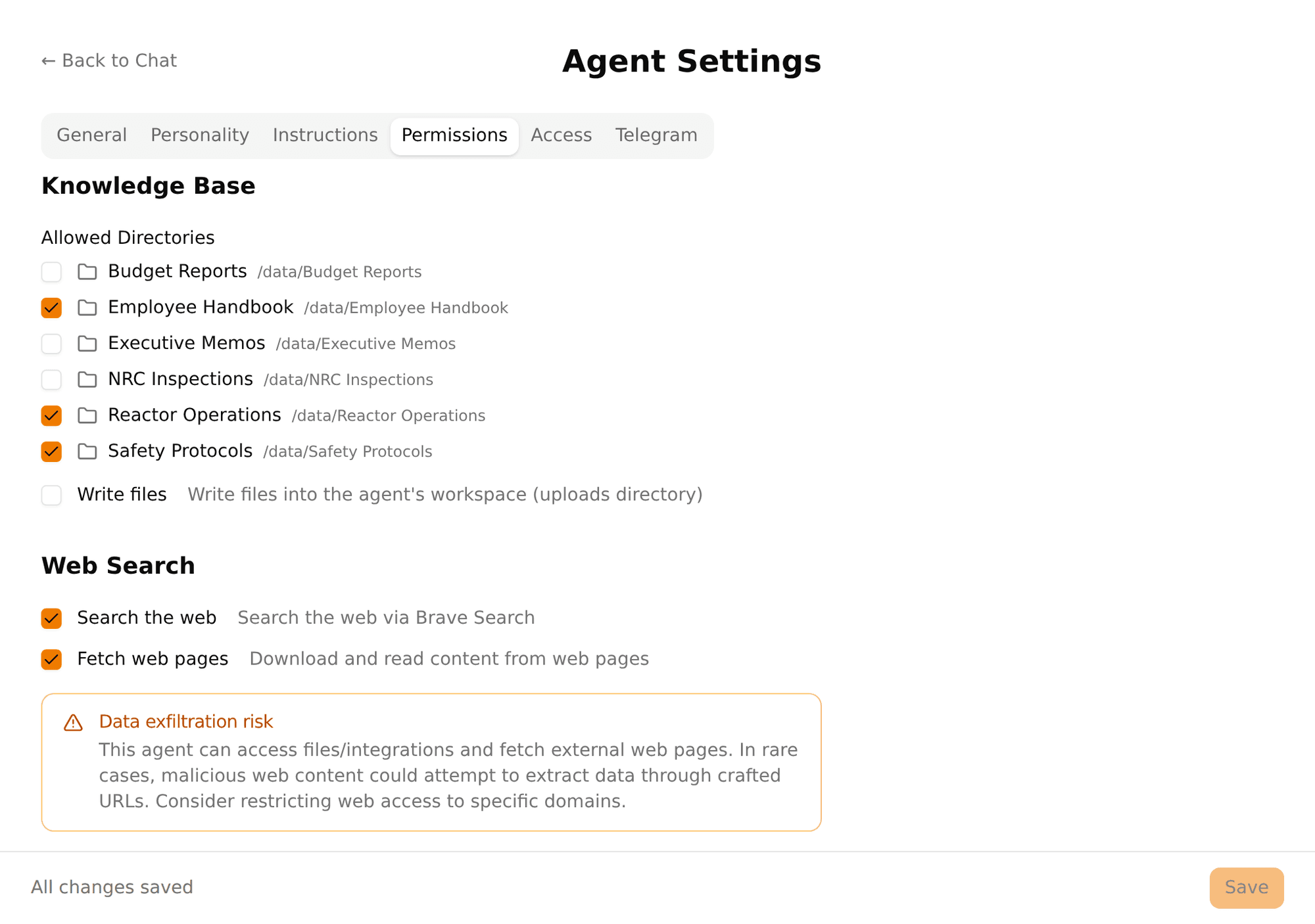
Feature
No tools by default. You grant exactly what's needed.
Per-agent, per-directory access control that goes beyond what OpenClaw alone provides.
Most platforms start with "everything allowed" and ask you to block what's dangerous. That's backwards for AI agents that can read files and act on real systems.
Pinchy starts with nothing allowed. A newly created agent is a blank slate — it can chat, but it can't access any tools, files, or external resources until you explicitly enable them.
This stays true as the platform grows. When OpenClaw ships new built-in tools, Pinchy keeps them off by default: a fail-closed allow-list denies anything you haven't granted, per agent, so a platform update never hands your agents new capabilities you didn't choose.
"Allow everything, block the dangerous stuff."
Problem: You have to anticipate every risk. Miss one tool, miss one directory, and the agent has access you didn't intend.
"Block everything, enable what's needed."
Benefit: The worst case is an agent that can't do something. You add permissions as needed. No surprises.
Pinchy organizes tools into two categories based on their risk profile:
Sandboxed access to admin-approved directories. The agent can list and read files — but only in directories you've selected. Every file access request is validated at runtime against the approved paths.
Capabilities that change data or reach outside the agent's directories. Web search and fetch, Odoo write operations, email send, and workspace file writes. Each requires an explicit admin grant. File writes stay scoped to the directories an admin approves per agent — never unrestricted.
This is the feature that makes Pinchy's permissions fundamentally different from OpenClaw's built-in tool configuration.
OpenClaw lets you say: "This agent can read files." Pinchy lets you say: "This agent can read files only in /data/hr/ and /data/policies/."
The directory picker is visual — no path guessing, no config files. Select directories, save, done. The validation happens at runtime, not just at configuration time.
Agent permissions control what data an agent can access. Groups control who can talk to the agent. Together, they create real data isolation:
| Agent | Can access | Available to |
|---|---|---|
| HR Assistant | /data/hr/, /data/policies/ | HR Group only |
| Finance Agent | /data/finance/, /data/reports/ | Finance Group only |
| Company Wiki | /data/wiki/ | Everyone |
The finance team can't even see the HR agent. And even if they could, the HR agent can't access finance data. Two independent layers.
30-minute demo. We'll set up an agent with scoped permissions and show you how data isolation works in practice.
FAQ
Pinchy uses an allow-list model: agents have no tools by default. An admin must explicitly enable each tool an agent is allowed to use. This is the opposite of a deny-list where everything is allowed unless blocked. A newly created agent cannot read files, use integrations, or browse the web until configured.
Yes. Pinchy supports per-agent directory scoping. When you enable file access for an agent, you select exactly which directories it can read. The agent cannot access anything outside those directories. This is a Pinchy-specific feature — OpenClaw alone doesn't support per-agent file path restrictions.
OpenClaw provides binary tool on/off per agent and predefined tool profiles. Pinchy adds two independent layers: directory scoping controls what data an agent can reach, and group-based availability controls who can talk to the agent. In OpenClaw, you can say 'this agent can read files.' In Pinchy, you can say 'this agent can read files only in /data/hr/ and /data/policies/' (directory scoping) — and separately limit it to users in the HR group (group availability).